HostLens

Server IP, CDN and tech stack of any website you open.

We run a small PrestaShop agency, and a good part of our day is answering the same three questions: is this shop already on the new server? Is Cloudflare in front of it? Which PHP is it running? HostLens answers them in the corner of the page, on every tab, without opening a terminal. It only reads what Chrome has already downloaded, so nothing about you or the sites you visit goes anywhere.

Add to Chrome Free · Chrome 116 or newer
See what it shows ↓

Try it: move the mouse over the badge in the corner and it steps aside. Hold Ctrl and it stays put; Ctrl + click copies the IP.

What you see when you click the icon

The badge gives you the IP at a glance. Click the HostLens icon in the toolbar and you get the full picture. These are real screenshots of the panel, not mock-ups.

Which server you reached, and who is standing in front of it

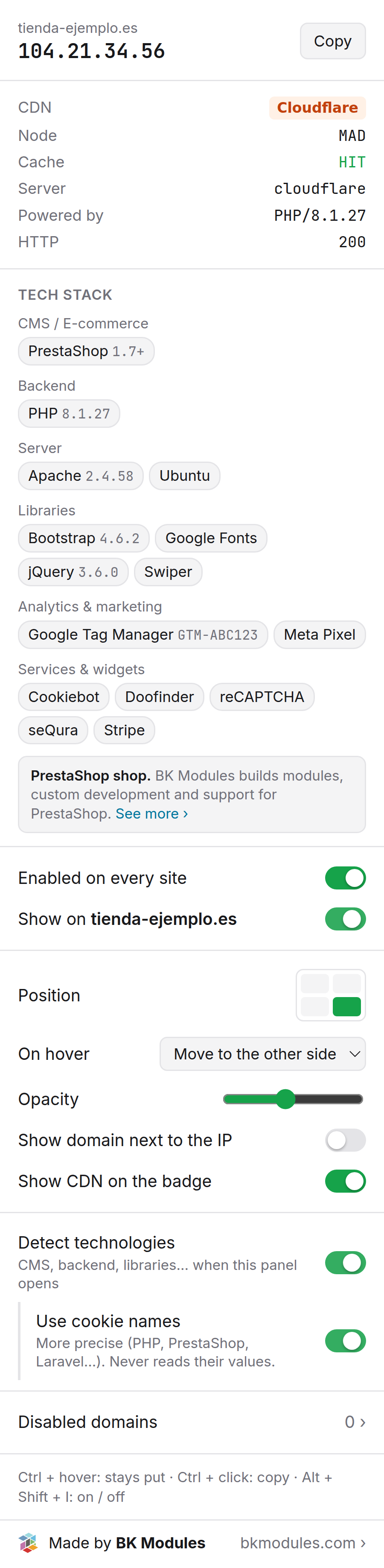
The IP address, with a copy button
This is the server Chrome actually connected to for this tab. If the page came out of the browser cache instead, the panel says so, so you never trust a stale IP.
CDN, edge node and cache status
Read straight from the response headers. You see the provider (Cloudflare, CloudFront, Fastly and a dozen more), which edge served you (MAD, CDG, FRA…) and whether it was a cache HIT or a MISS. That last bit explains a surprising number of "the site feels slow" calls.
Server, X-Powered-By and HTTP status
Whatever the server says about itself, plus the response code. It all comes from the same response Chrome already has, so it costs nothing.
What the site is built with, if you turn it on

Grouped by category, with version numbers
CMS and e-commerce platform, backend language, web server, frontend frameworks, libraries, analytics and third-party widgets. When a site exposes its version (PHP 8.1.27, jQuery 3.6.0…) you see it too.
Each chip tells you how it was found
Hover a chip and it says whether it came from a header, the page itself, a script URL or a cookie name. Things we only infer (PHP because there is PrestaShop) get a dashed border, so you can tell evidence from deduction.
Off until you want it
Tech detection is a switch. Flip it and Chrome asks for the permission; flip it back and the permission is dropped. Cookie values are never read — only their names, and only if you tick that box.

Put it where you like, and switch it off where you do not

Every site, or just this one
One global switch, one per domain. Sites you turn off go into a searchable list; you can paste a whole batch of domains if you manage a lot of them.
Corner, dodge and opacity
Pick the corner, decide where the badge jumps when you hover it (other side, up, diagonal, or not at all), how transparent it is, and whether it also shows the domain and the CDN.
One keyboard shortcut
Alt + Shift + I turns HostLens on or off everywhere, in case you need a clean screenshot.

Nothing leaves your browser

We are asking you to install an extension that can see every site you visit, so this deserves a proper explanation. HostLens has no server and never makes a request of its own. It reads the response Chrome already received — that is the whole trick.

No network requests
The IP and headers are already in Chrome the moment the page loads. HostLens does no DNS lookups, no geolocation, no calls to third-party APIs. Nobody — including us — learns which sites you look at.
No account, no analytics
There is nothing to sign up for. The extension has no usage statistics and no telemetry. (This website does use Google Analytics, like most websites; the extension itself does not.)
Permissions only when needed
Reading the page and cookie names is only requested if you enable tech detection, and the permission is removed the moment you turn it off.
DataUsed forWhere it livesHow long
IP and headers of each tab's main page IP, CDN, node, cache, server Chrome storage.session, in your browser Until you close the tab
Your settings and the disabled-domain list Remembering your configuration Your Chrome profile (storage.sync / local) Until you uninstall
Public page markers (meta generator, script URLs, globals) Tech detection, if enabled Not stored — read when the panel opens While the panel is open
Cookie names of the site (never their values) Refining PHP, PrestaShop, Laravel…, if enabled Not stored While the panel is open

Read the full privacy policy →

Fifteen CDNs it recognises

When a site sits behind a CDN, the IP you see is the CDN's edge, not the origin — that is simply how the internet works. HostLens tags it so you do not spend ten minutes wondering why your shop "resolves to Cloudflare".

  • Cloudflare
  • Amazon CloudFront
  • Fastly
  • Akamai
  • Vercel
  • Netlify
  • Bunny CDN
  • Azure Front Door
  • Google
  • Sucuri
  • Imperva
  • KeyCDN
  • CDN77
  • Hostinger CDN
  • Fly.io
  • edge nodeMAD
  • cache statusHIT

How we use it, honestly

We built HostLens for our own day-to-day at BK Modules. These are the moments it saves us every week.

  • The morning after a migration

    A client asks "are we on the new server yet?". We open the shop, look at the corner, done. No ping, no dig, no waiting for someone to check the DNS.

  • "The site is slow"

    First thing we look at: is Cloudflare in front, which node is serving, and is the page a cache HIT or a MISS. Half the time the answer is right there before we touch the server.

  • Quoting a new shop

    Before we send a quote we want to know which PrestaShop, which PHP, which payment gateway and which analytics the shop runs. Two clicks on the panel instead of an afternoon of asking.

  • Support tickets

    When someone writes in, we open their site with the ticket beside it. Server, CDN, stack — the context is already on screen while we read what went wrong.

Questions people ask us

Why do I see a Cloudflare IP instead of my server's?

Because Cloudflare is in front of your site. Chrome connects to Cloudflare, not to your server, so that is the only IP that exists from the outside. The CF tag on the badge is telling you exactly that. Not even Chrome knows your origin IP.

What does the yellow dot mean?

That the page came from Chrome's own cache, without a new connection. The IP shown is the one from the last real connection to that site. Reload the page and the dot goes green again.

Does it work with IPv6?

Yes. It shows whichever address Chrome used, v4 or v6, and the domain manager accepts bracketed IPv6 addresses.

Why does it ask to "read and change all your data on all websites"?

That is Chrome's standard wording for any extension that works on every page. The badge has to appear without you clicking anything, and to know the IP the extension has to observe the response. It does not change anything on any page apart from adding the badge, and you can restrict it to specific sites from chrome://extensions.

Will it slow down my browsing?

No. It makes no requests and does nothing on page load beyond reading what Chrome already has. Tech detection, when you enable it, only runs at the moment you open the panel.

Which languages is it in?

The extension follows Chrome's language: English and Spanish. This website is in English, Spanish, French, German, Italian and Portuguese.

Add to Chrome

Free, and it stays free

We are the team behind BK Modules, a PrestaShop agency. We built HostLens for ourselves and we publish it exactly as we use it. If you run a PrestaShop shop and need a module, a custom development, an ERP integration or just someone who picks up when something breaks — that is what we do all day.

Got a PrestaShop shop? Talk to us →